


Paralives launched on May 25, 2026, and while players are excited to finally get their hands on a new life sim, reports of stuttering and crashing have been surfacing since day one. That’s fairly common for Early Access releases, and Paralives is no exception.
The good news is that most of these stuttering and crashing issues are fixable on the player’s end, at least to a workable degree. Here is a breakdown of what is causing the problems and what actually helps.
Note: These methods are workarounds that may not apply to everyone, but they might help you get back into the game.
Why Paralives is experiencing stuttering and crashing?
Paralives is a brand new game in early access, and right now it is not well optimized. The game demands a fairly capable machine just to run at minimum settings, requiring at least 12 GB of RAM alongside dedicated GPU support. When the hardware barely meets those requirements, or when background processes are eating into available resources, the game reacts badly.
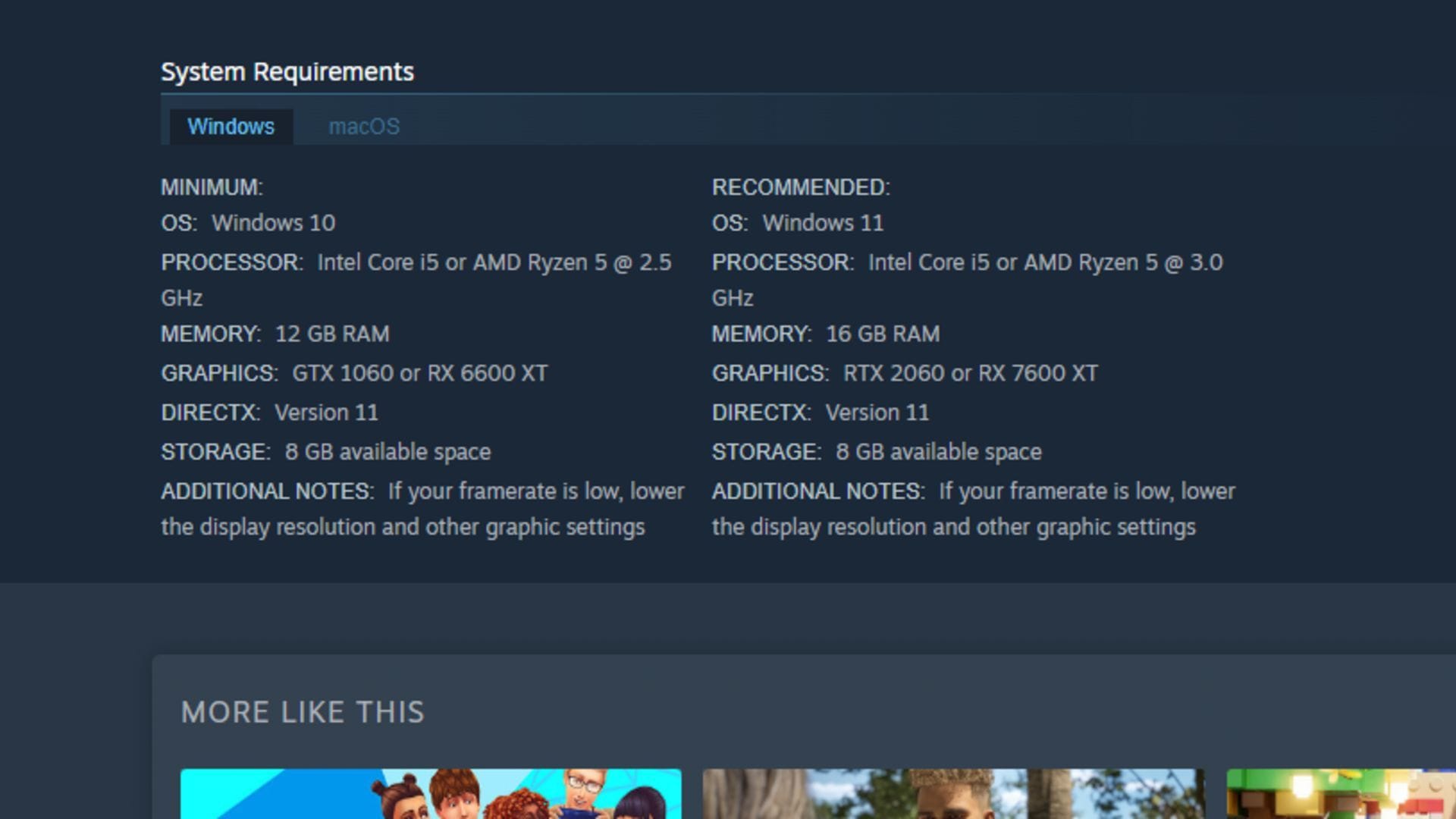
Stuttering and crashing in Paralives typically show up as sudden FPS drops, hitching during camera movements, and random freeze spikes. These are not always GPU-related. Heavy simulation processing, which pertains to large households and complex builds, can cause frame pacing issues even on stronger PCs.
On top of that, running the game uncapped, having overlays active, or installing it on a slow drive all contribute to the same problem of stuttering and crashing.
Crashes, on the other hand, often come down to high CPU or memory usage, outdated drivers, or background processes that conflict with the game’s startup. Some players also run into a loading screen lock that stops the game from launching altogether, which is a separate issue with its own set of causes.
Also read: Your SSD could be damaged by playing Valorant, but only if you are cheating
Real-time fixes to reduce stuttering and crashing in Paralives
1) Lower the graphics and simulation settings first
The first thing to reduce stuttering and crashing is going into the game settings menu and pulling down shadow quality, texture quality, reflections, and simulation settings. These are the biggest performance drains in Paralives right now.
If the frame rate is consistently low, also consider dropping the display resolution. The game itself flags this in its settings, so it is something the developers acknowledge directly.
2) Enable DLSS, FSR, and frame generation
Head into the Nvidia app or AMD panel, find the Paralives application, and make sure DLSS, FSR, and frame generation are enabled if available. These upscaling tools do a meaningful job of recovering frames without tanking visual quality.
While in the GPU panel, also check that the drivers are fully up to date. Outdated GPU drivers are one of the most common causes of stuttering and crashing in new releases, and updating them takes very little time.
3) Cap the frame rate
Running Paralives uncapped puts unnecessary strain on the GPU and often introduces frame pacing issues. Capping the frame rate to 60, 90, or 120 FPS depending on the monitor can help reduce hitching noticeably.
This can be set through the in-game settings or through the GPU panel.
4) Install on an SSD and kill the overlays
If Paralives is installed on a traditional hard drive, slow asset streaming will cause hitching that no graphics setting change will fix. Moving it to an SSD addresses that directly.
Alongside that, disabling overlays from Discord, MSI Afterburner, and any recording software removes another common source of frame interruption that players often overlook.
5) Clean up background processes
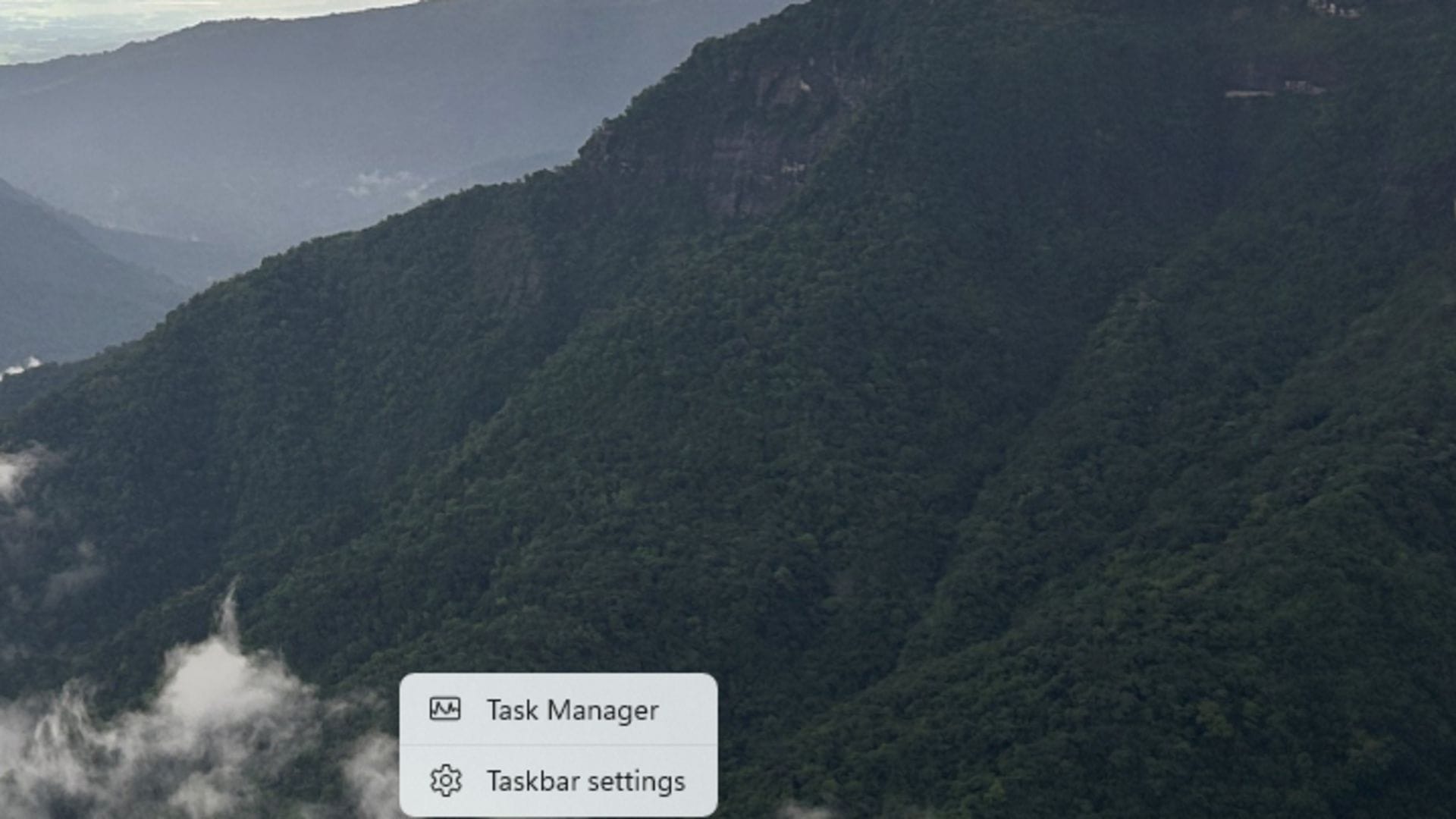
Open Task Manager, sort by CPU, memory, disk, and GPU usage, and close anything that is not necessary while playing. Applications like Google Chrome and background system tools can quietly consume enough resources to push the game into instability.
This is especially relevant for crashing, and if CPU or memory usage is consistently near the ceiling, the game will eventually crash on its own.
6) Update chipset drivers and disable audio devices if needed
Beyond GPU drivers, chipset drivers and Windows updates are worth checking. In Device Manager, updating disk drive and processor drivers has resolved startup crashes for several players. There is also a specific tip that can be worked: going into Sound, Video and Game Controllers, finding Realtek Audio, and temporarily disabling it.
Of course, if that creates sound issues, it can simply be re-enabled, but it is worth trying if nothing else is working against stuttering and crashing.
Read more: Lego Batman Legacy of the Dark Knight crashing on pc: Possible reasons and fixes
7) Fix the loading screen lock
For players stuck on the loading screen, right-clicking the Paralives executable, going to Properties and then Compatibility, and enabling both ‘Run as Administrator’ and ‘Run in Compatibility Mode’ while disabling full-screen optimization will fix the issue.
Killing any lingering background processes from a previous session in Task Manager before relaunching also helps clear whatever is blocking the startup and prevents stuttering and crashing.
8) Boost overall performance through Windows settings
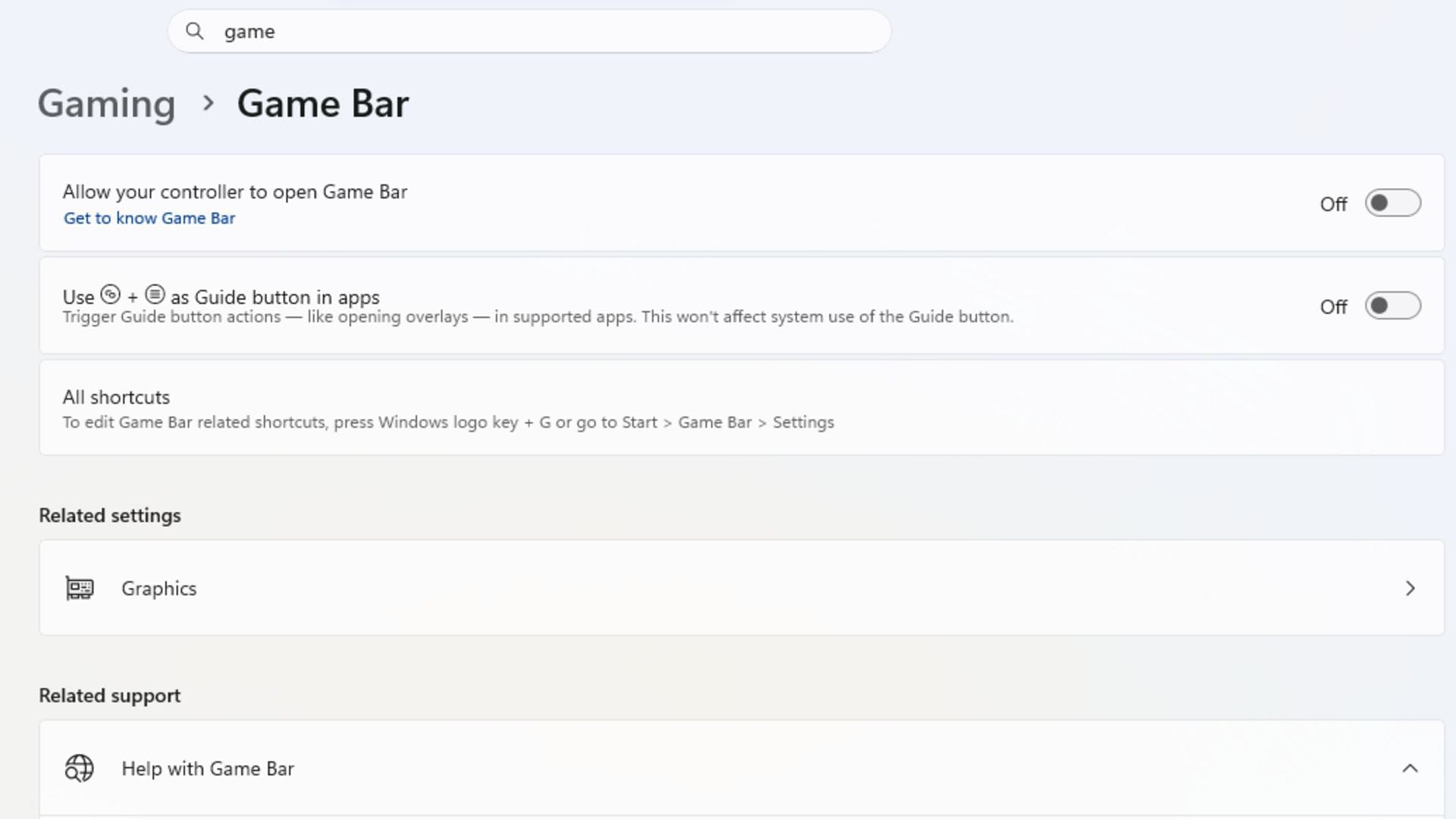
A few system-level changes also make a difference. In Windows Settings under Gaming, turning off Game Bar and Captures if they are not being used frees up background resources. Enabling Game Mode in the same menu tells Windows to prioritize Paralives over other processes.
Switching the power plan to Ultimate Performance or High Performance in the power settings is another step that directly improves how the PC handles the game’s demands.
Finally, in Task Manager under the Details tab, finding the Paralives process and setting its priority to Real Time gives the game a larger share of system resources. Disabling startup apps that run automatically in the background is also worth doing, since those quietly consume CPU and memory before the game even launches.
Paralives is still early in its life, and optimization patches will come. But in the meantime, working through these fixes for stuttering and crashing should make the experience considerably more stable.
Check out: Forza Horizon 6 Compatibility Warning error: Is there any fix?
Edited by Rishi Pallav